Para ofrecer las mejores experiencias, utilizamos tecnologías como las cookies para almacenar y/o acceder a la información del dispositivo. Consentir estas tecnologías nos permitirá procesar datos como el comportamiento de navegación o identificaciones únicas en este sitio. No consentir o retirar el consentimiento, puede afectar negativamente a ciertas características y funciones.
El almacenamiento o acceso técnico es estrictamente necesario para el fin legítimo de permitir el uso de un servicio específico solicitado explícitamente por el abonado o usuario, o con el único fin de llevar a cabo la transmisión de una comunicación a través de una red de comunicaciones electrónicas.
El almacenamiento o acceso técnico es necesario para el fin legítimo de almacenar preferencias no solicitadas por el abonado o usuario.
El almacenamiento o acceso técnico que se utiliza exclusivamente con fines estadísticos.
El almacenamiento o acceso técnico que se utiliza exclusivamente con fines estadísticos anónimos. Sin una citación judicial, el cumplimiento voluntario por parte de su proveedor de servicios de Internet o registros adicionales de un tercero, la información almacenada o recuperada únicamente con este fin no puede utilizarse normalmente para identificarle.
El almacenamiento o acceso técnico es necesario para crear perfiles de usuario para enviar publicidad, o para seguir al usuario en un sitio web o en varios sitios web con fines de marketing similares.


















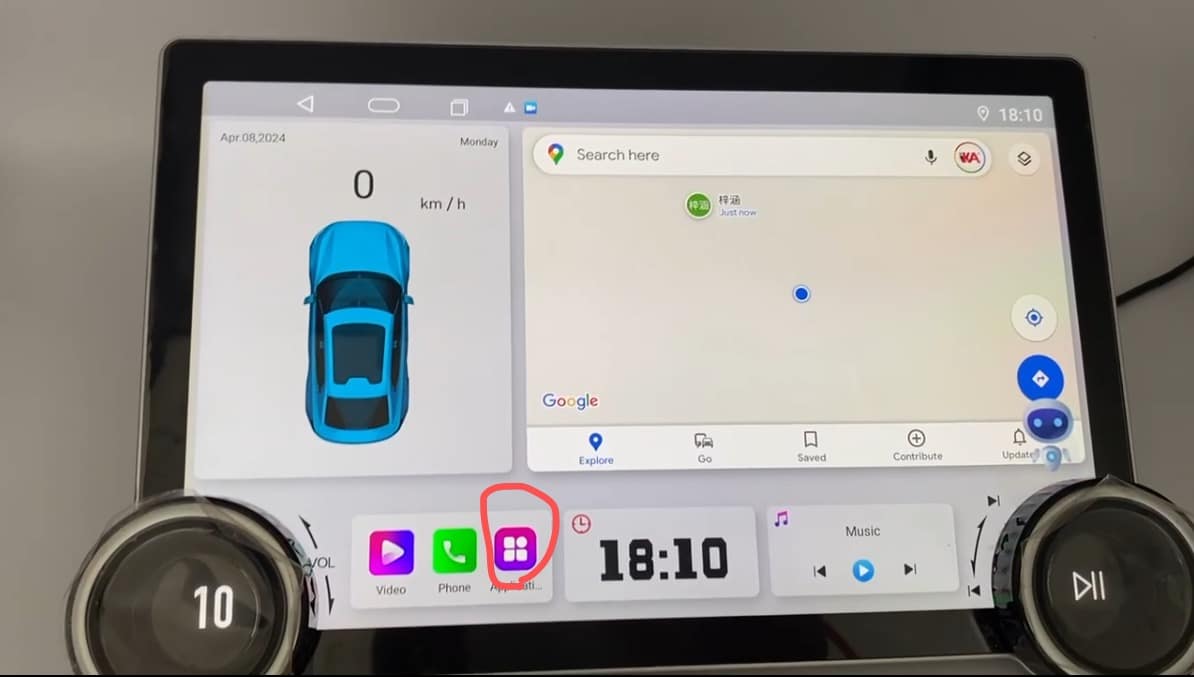
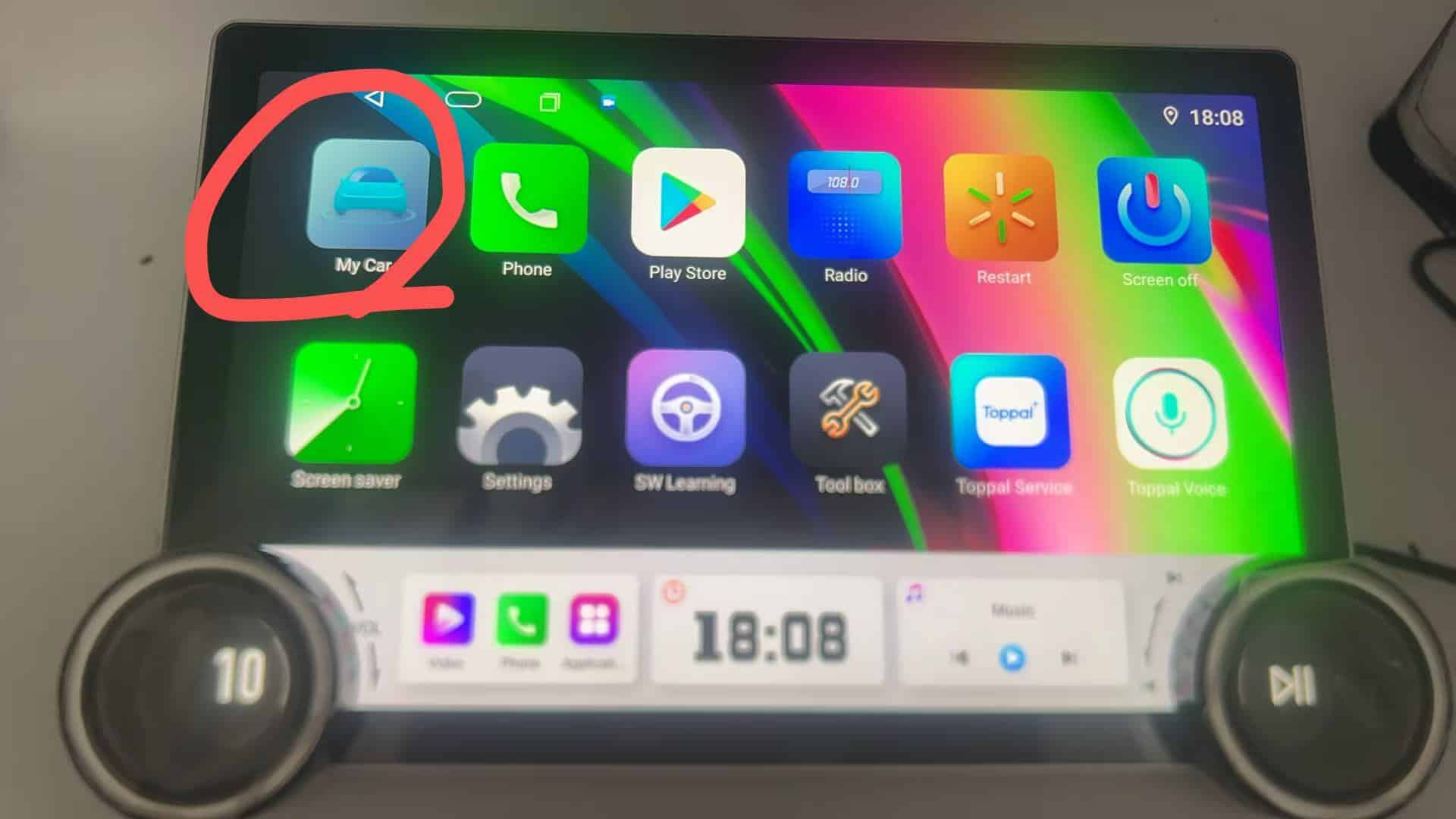
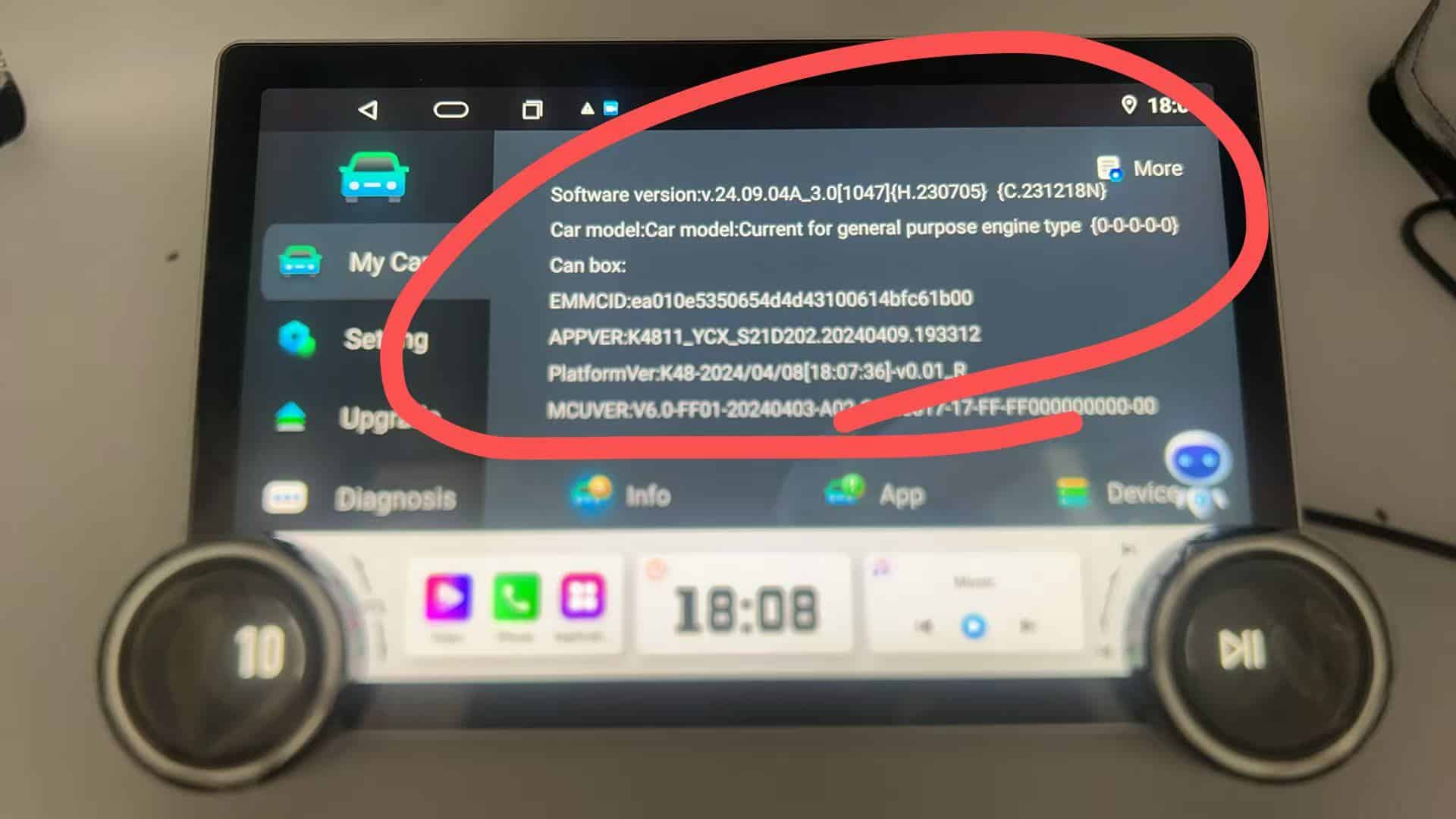
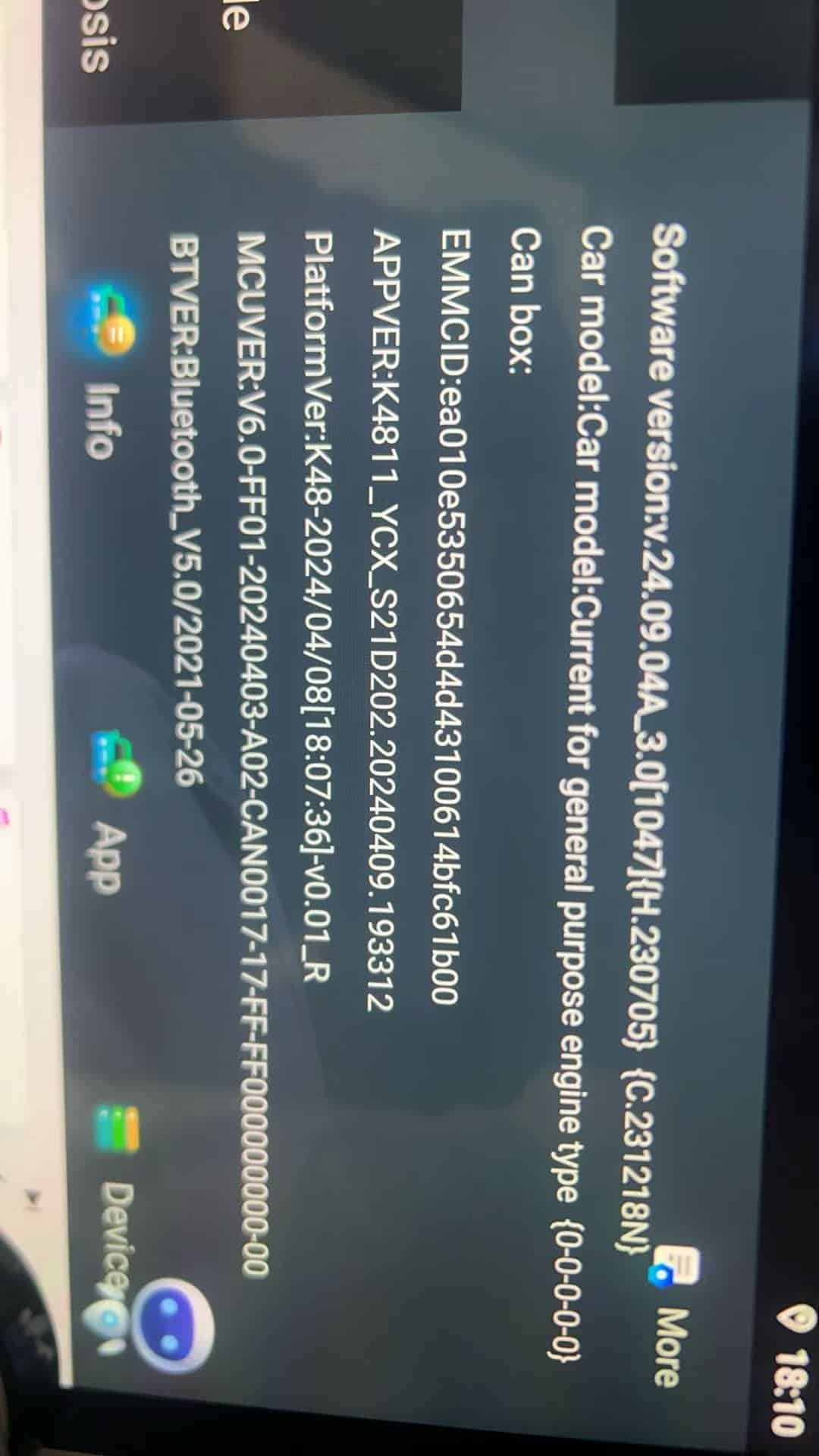
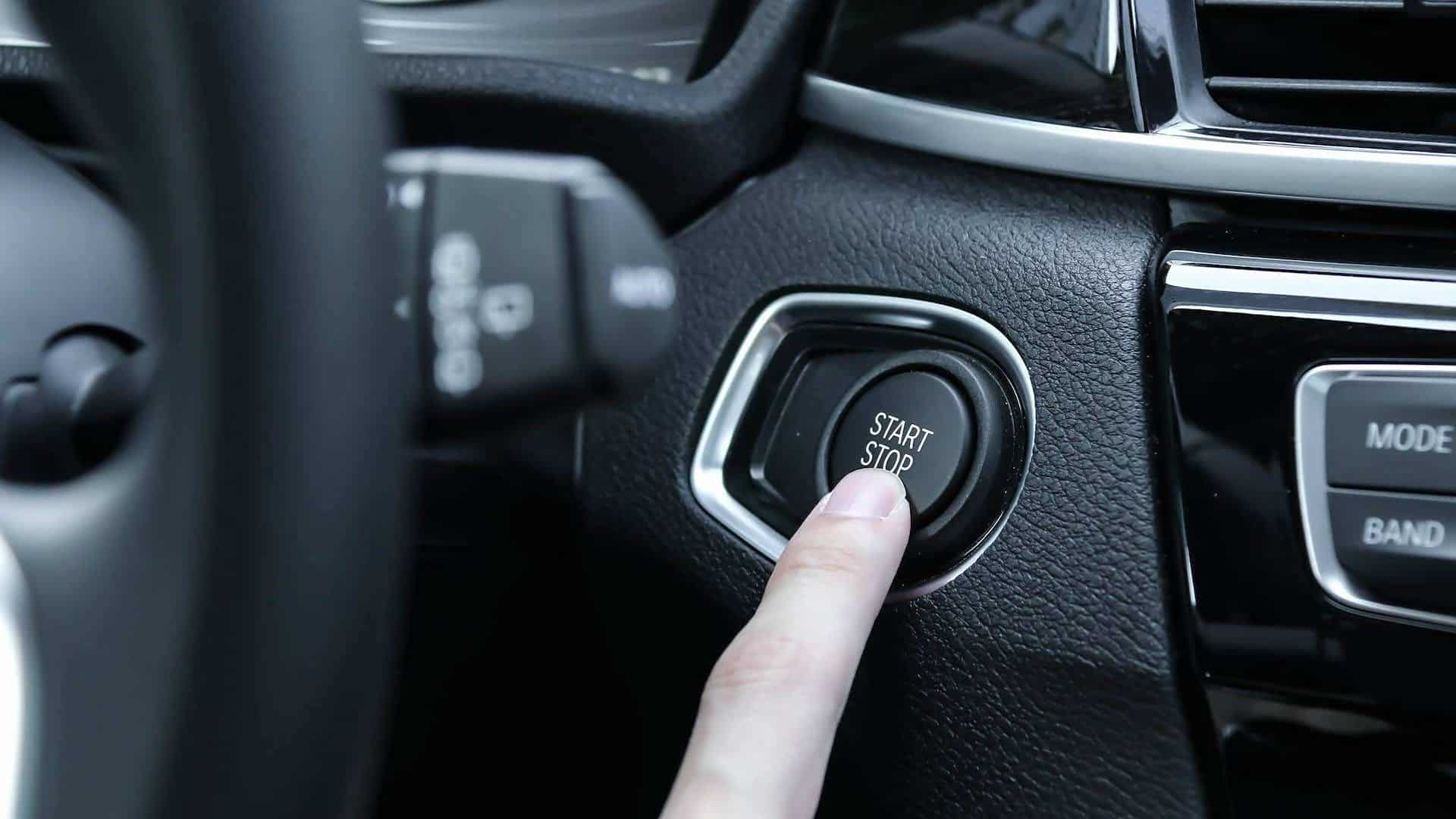 Ensuring that your **NWD system version** is up-to-date is essential for optimal performance and security. In this guide, we'll walk you through the steps to check your **car infotainment system version** and ensure it's running the latest firmware and updates. By regularly checking your system version, you can enjoy the best features your **infotainment system** has to offer.